
Publish campaign assets
Build a clear, correctly scoped library for your participants.
Reviewed 27 October 2026
Organize the library
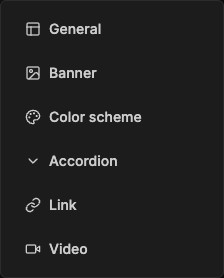
Open Engage → Marketing Assets. Use Create folder to group related material. Add Asset offers General, Banner, Color scheme, Accordion, Link and Video types in the current interface. Choose the format that fits the task rather than uploading everything as an image.
Give each campaign a clear name, approved landing page, usage dates and owner. A campaign folder organizes promotion; it does not automatically assign a commission plan or connect conversion tracking.
Review and publish
- Use current DigLab branding and approved claims.
- Check file readability, phone layout and link destinations.
- Choose everyone, group or individual visibility as supported.
- Inspect attachments and hidden details for customer information or internal costs.
- Save intentionally and verify the participant view with the correct access.
Do not publish an editor preview as a finished asset. Discard an unsaved experiment if it is not intended for the library.
Retire old offers carefully
When an offer changes, update the asset and guidance while preserving necessary history. Check whether a scheduled announcement or external post still refers to the old offer. Do not alter live codes or links casually; their printed and published copies may break.