
Join and sign in
Use the correct program portal and recover access without creating duplicate accounts.
Reviewed 27 October 2026
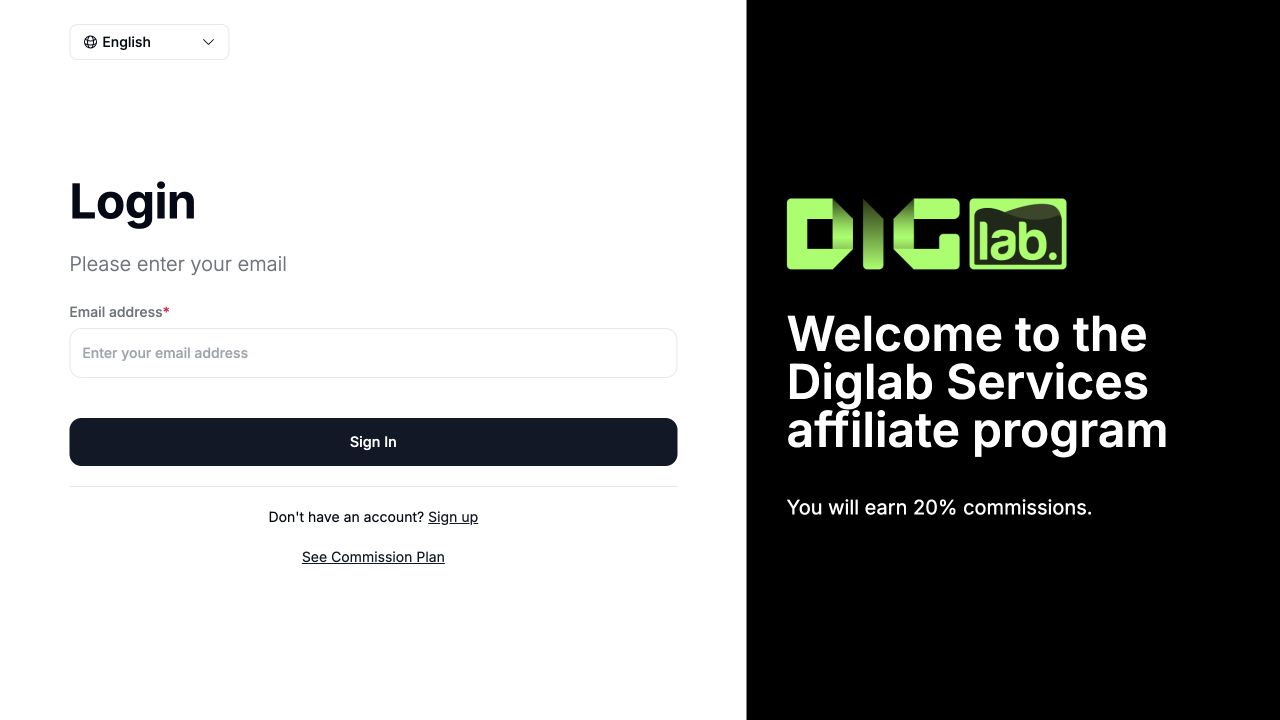
Use the program’s invitation or registration page
Use the direct access link supplied by DigLab or the program manager. Registration and sign-in are different: registration creates a participant account; sign-in opens one that already exists. An application may still require the program’s approval after account creation.
Use the same email across an invitation, registration and later sign-in. If an invitation was sent to another address, resolve that mismatch with the program manager before creating another account.
Finish confirmation and approval
- Read the program information and current terms.
- Enter the required account details on the official portal.
- If email confirmation is requested, use the latest confirmation message.
- Complete required onboarding questions and wait for approval when shown.
- Check that the program name matches the one you intended to join.
If access fails
If your existing account uses a specific sign-in method, use that method. A password reset cannot always replace a provider-only login. Avoid repeated registrations or switching unrelated identities.
For an unavailable portal, certificate warning, verification challenge or rejected invitation, record the URL, time and visible error. Contact the program through an established support route. Never send a password, one-time code or full account screenshot.